



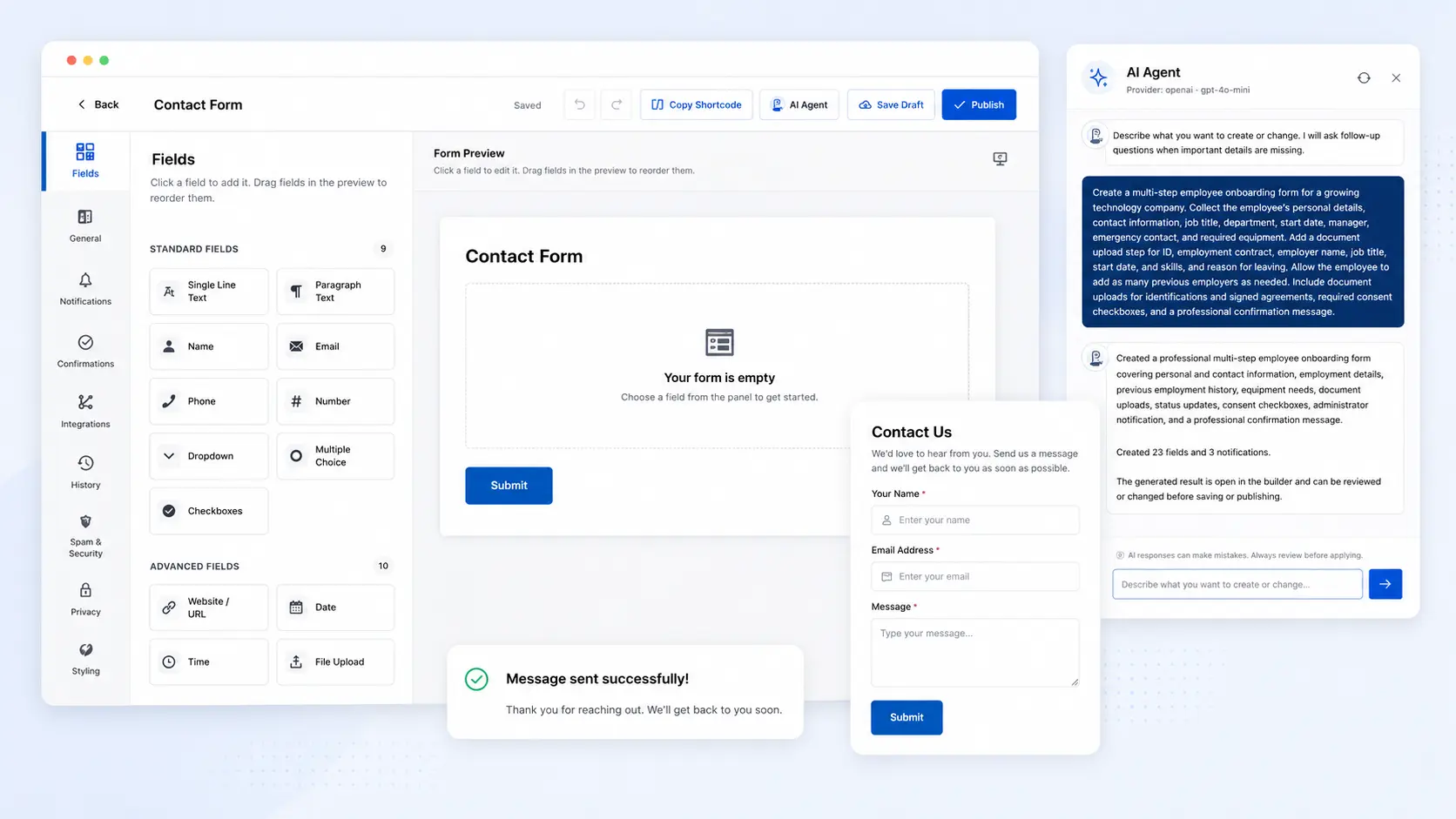
To learn how to create a contact form in WordPress without coding, install a form builder such as Plattio Forms, add the fields you need, configure notifications and spam protection, then embed the form on a page. The steps below take you from installation to a tested, working contact form.
What is a WordPress contact form?
A contact form lets visitors send an enquiry from your website. It is usually better than publishing an email address because it collects information consistently, supports validation and spam controls, and keeps your address away from basic email-harvesting bots.
How to create a contact form in WordPress with Plattio Forms
- Install and activate the plugin. Open WordPress Admin and go to Plugins → Add New. Search for Plattio Forms, or upload its plugin file, then select Install and Activate. Consult the documentation if your installation method differs.
- Create a new form. Open Plattio Forms and choose a contact form template or start with a blank form. Other form templates can provide a starting point for specialised enquiries. Give the form a descriptive internal name, such as “Main website contact form.”
- Add the essential fields. Use the visual builder to add custom fields for name, email, subject or enquiry type, message, consent when appropriate, and a submit button. Email and message should normally be required. Ask only for information needed to respond.
- Customise the form. Edit labels, descriptions, placeholders, required settings, button text, field widths, appearance, and mobile layout. Use visible, descriptive labels rather than placeholders alone. Clearly identify required fields and provide understandable instructions and validation errors. Conditional logic can reveal extra fields only when an answer makes them relevant. For longer guided experiences, consider conversational forms.
- Configure email notifications. In the notification settings, enter the website owner’s recipient address and add a clear subject such as “New website enquiry.” Use the visitor’s email field as Reply-To where supported. WordPress email delivery is not guaranteed; SMTP or a transactional email provider may help if messages are unreliable.
- Set the confirmation. Display a success message after submission or redirect the visitor to a thank-you page. Confirm that the message was received and state a realistic response time.
- Add spam protection. A honeypot hides a field that people should not complete, rate limiting restricts repeated attempts, and CAPTCHA asks visitors or their browsers to complete a check. Use Plattio Forms’ available spam-protection options with only as much friction as necessary. No method prevents every spam submission.
Essential fields for a WordPress contact form
| Field | Purpose | Usually required | Recommended configuration |
|---|---|---|---|
| Name | Identifies the visitor | No | Use one field unless separate names are necessary |
| Provides a reply address | Yes | Enable email validation | |
| Subject or enquiry type | Routes or explains the request | No | Use a short text field or select list |
| Message | Collects the enquiry | Yes | Use a multi-line field |
| Consent or privacy | Records an acknowledgement when appropriate | Depends | Use clear wording linked to your privacy information |
Publish the contact form
Create or edit a WordPress page. Add the Plattio Forms block when available through WordPress or a supported builder integration, then select your form. Alternatively, add a Shortcode block and enter [your-plattioforms-shortcode]. Preview the page before publishing it.
Test the finished form
- Send a real test entry and check required-field validation.
- Confirm that the success message or redirect works.
- Verify that the notification arrives and Reply-To uses the visitor’s address.
- Check the stored entry when entry management is enabled.
- Test desktop, tablet, and mobile layouts.
- Use keyboard navigation and confirm that focus states remain visible.
Troubleshoot common contact form problems
- Emails are not arriving: Check recipient settings and spam folders, then test SMTP or a transactional email provider.
- The form does not appear: Confirm that the correct form is selected and published.
- The shortcode appears as text: Place it in a WordPress Shortcode block, not a paragraph block.
- Submission fails: Review validation, spam settings, plugin conflicts, and browser errors.
- Spam submissions continue: Adjust the available honeypot, rate-limiting, or CAPTCHA settings.
- The mobile layout looks wrong: Review field widths and appearance settings, then check for theme or page-builder style conflicts.
Create your first contact form
You now know how to create a contact form in WordPress, configure it responsibly, and verify that it works. Ready to build better forms on your WordPress site? Try Plattio Forms free and go from an empty form to a working contact page without writing code.